Posts tagged ‘windows mobile’

Mobile Developement – RDP AutoLogin extended (version 4)

Hello

on the wish of the one or other user I extended the RDP AutoLogin code and we now reached level 4.

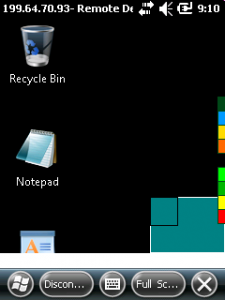
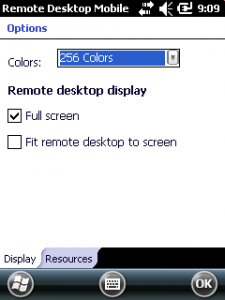
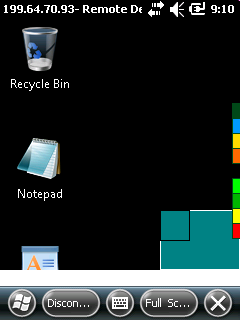
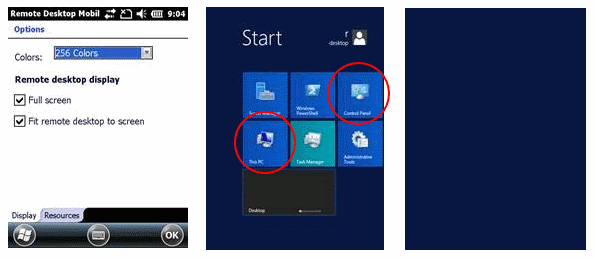
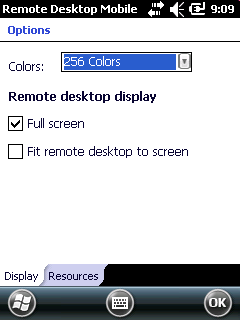
The new code simply has only one extension, it supports the color depth selection. Also the color depth and other settings are visible on the dialog of Remote Desktop Mobile, the settings itself are done via the Default.rdp file. But you are right, RDP_AutoLogin also controls some of the dialog items directly.

  1. ...
  2. Domain:s:
  3. ColorDepthID:i:3
  4. ScreenStyle:i:0
  5. DesktopWidth:i:640
  6. DesktopHeight:i:480
  7. UserName:s:rdesktop
  8. ...
  9. ServerName:s:192.168.128.5
  10. SavePassword:i:1
  11. ...

The color depth setting supports two modes, 8 Bit with 256b colors (ColorDepthID:i:1) and 16 Bit with ~65000 colors (ColorDepthID:i:3).

  1. REGEDIT4
  2.  
  3. [HKEY_LOCAL_MACHINE\Software\RDP_autologin]
  4. "FitToScreen"="1"
  5. "FullScreen"="1"
  6. "Status"="connecting..."
  7. "Save Password"="1"
  8. "Domain"=""
  9. "Password"="Intermec+2004"
  10. "Username"="rdesktop"
  11. "Computer"="192.168.0.130"
  12. "DesktopWidth"=640
  13. "DesktopHeight"=480
  14. "startOnExit"="\\rdp_keepBusy.exe"
  15. "execargs"="noRDPstart"
  16. "UseMouseClick"="0" //added with version 3 to switch between mouse and keyboard simulation
  17. "ColorDepth"=1 //added with version 4 to enable switching between 8 and 16 Bit colors

The code changes are small. Some code addition to read the value from the registry and some to write the rdp file:

  1. void readReg(){
  2. ...
  3.         //ColorDepth new with version 4
  4.         if(RegReadDword(L"ColorDepth", &dwTemp) == 0)
  5.             dwColorDepth=dwTemp;
  6. ...
  7. }
  8. void writeRDP(){
  9. ...
  10. else if(wcsstr(rdpLines[c].line, L"ColorDepthID")!=NULL){
  11. wsprintf(szTemp, rdpLines[c].line, dwColorDepth); //3=HighColor(16Bit) or 1=(8Bit) color
  12. }
  13. ...
  14. }

Additionally I have added a new project to the solution to enable to set all the settings not only via the registry but using a GUI application. RDP_Autologin_Settings is born:

Continue reading ‘Mobile Developement – RDP AutoLogin extended (version 4)’ »

Windows Mobile – tasker2 runs and stops applications periodically

Tasker2 is a tool to launch or kill applications periodically using windows mobile scheduler. It was born to control the running of agent software on windows mobile at specified times. The problem with the agent software was that it does not open/close connections only on usage times but all the time and the device’s battery was drain very fast. We decided to write a helper that would launch and kill the agent to have it running only within a defined time frame.

Background process

We could have written a background process to run external tasks periodically. But the main disadvantage of timers and threads in background processes is that they do not run, if the device is in suspend mode.
To ensure that tasks will be launched also if the device is sleeping, we decided to use the windows mobile scheduler. There are functions inside the notification API to create notifications that will run an application at a specified time. This is what we call a schedule.

The scheduler (notification API)

After a timed schedule has been done by the scheduler, the schedule is removed from the notification database. If you like to have a periodic schedule, you have to ensure that a new schedule is created inside your code.

Pitfalls

During development we found many pitfalls in conjunction with the windows mobile scheduler. This is why I decided to write this post.

The tasks

Tasker2 is a console application without any GUI but it will write a log with all you need to know. Tasker2 supports up to ten tasks. A task is defined using the registry. Every task has an entry for start and stop times, the application to control, an interval for the schedule and a flag for control if a task is only to be run on external power:

REGEDIT4

[HKLM\Software\Tasker\Task1]
"active":DWORD=1
"exe":="\Windows\fexplore.exe"
"arg":="\My Documents"
"start":="1423"
"stop":="1523"
"interval":="2400"
"startOnAConly":DWORD=0;

active: if active is 0, tasker2 will not kill or start the process
exe: name of the process executable to start or kill
arg: arguments to be when launching the executable
start: when to start the executable the next time
stop: when to kill the process the next time
interval: when a start or kill has been executed, tasker2 will create a new schedule using this interval. If the interval is “0010″, the start process will be scheduled for every 10 minutes.
startOnAConly: if 1 and when a process has to be started, the process will only be started if the device is on external power

The scheduler

First, tasker2 is normally only launched one time manually and all future calls are made by the scheduler. Tasker2 will clear and schedule all planned tasks as defined in the registry if it is launched without arguments.

Continue reading ‘Windows Mobile – tasker2 runs and stops applications periodically’ »

Windows Mobile – the no-go world of Function Keys

Hello

I want to summarize the role of function keys in Windows Mobile, former Pocket PC, as I got several questions each week on how to use or enable Function keys in this or that application.

Here is a simple information about how function keys work in Windows Mobile.

Continue reading ‘Windows Mobile – the no-go world of Function Keys’ »

KeyToggleStart: Yet another usage for keyboard hook

Hello Windows Mobile Users

recently the following was requested:

How can I start an application by just hitting some keys in sequence?

The answer: Just use a keyboard hook.

So I started to code this hook tool based on my KeyToggleBoot2 code. There was not too much to change. The new tool is called KeyToggleStart and it is configured by the registry:

            REGEDIT4

            [HKEY_LOCAL_MACHINE\Software\Intermec\KeyToggleStart]
            "ForbiddenKeys"=hex:\
                  72 73 00
            ;max 10 keys!
            "KeySeq"="123"
            "Timeout"=dword:00000003
            "LEDid"=dword:00000001
            "Exe"="\\Windows\\iexplore.exe"
            "Arg"=""

Reg keys meaning:

Forbiddenkeys is just an addon feature: key codes entered in this list will not be processed any more by your Windows Mobile device. For example, to disable the use of the F3(VK_TTALK) and F4 (VK_TEND) keys you have to enter a binary list of 0×72,0×73,0×00 (the zero is needed to terminate the list).

KeySeq list the char sequence you want to use to start an application. For example if this is the string “123″, everytime you enter 123 in sequence within the given time, the application defined will be started.

TimeOut is the time in seconds you have to enter the sequence. So do not use a long key sequence as “starteiexplorenow” and a short timeout (except you are a very fast type writer). The timeout is started with the first char matching and ends after the time or when you enter a non-matching char of the sequence.

With LEDid you can specify a LED index number. LED’s on Windows Mobile are controlled by an index number, each LED has one or more ID assigned to it. So, with LEDid you can control, which LED will lit, when the matching process is running. You can even find an ID to control a vibration motor, if your Windows Mobile device is equipped with one.

The Exe registry string value is used to specify which application will be started when the key sequence is matched.

If the application you want have to be started needs some arguments, you can enter these using the Arg registry value.

When you start the KeyToggleStart tool, you will not see any window except for a notification symbol on your Start/Home screen of the device.

If you tap this icon (redirection sign) you have the chance to end the hook tool.

Continue reading ‘KeyToggleStart: Yet another usage for keyboard hook’ »